
WMouseXP Bluetooth Presentation Remote Control Software
Note: This project is no longer maintained or supported.
The following information is provided solely for historical and legacy reference.
WMouseXP Bluetooth Presentation Remote Control Software
Turn your Android phone into a Wireless Presenter Remote
Control PowerPoint, Windows Media Player and Mouse on your Computer from your mobile phone!
Works with so many Android Phones & Tablets, Samsung, HTC, LG, Motorola, Sony Ericsson, Nokia (Series 40, Symbian S60 - NOT the Windows Phones) and BlackBerry phones!
DOWNLOAD WMouseXP PC-App - Click to Download and Install it on your Computer (Windows XP, Windows 7).
Marriage Celebration Edition - NOW FREE FULL VERSION! 
Like WMouseXP? Like Bluetooth? Please checkout our new product: EcoDroidLink Bluetooth Internet Access Point!
3G and WIFI drains too much battery? 2G is too slow? Bluetooth is the middle-path solution!
Bluetooth internet is more than fast-enough for your Android device! Let’s try if EcoDroidLink can make your Android phones/tablets last longer between charges! Please click here and check it out!
What does this app do?
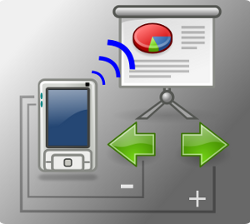
 Change Powerpoint Presentation slides from your phone.
Use the Volume + and - rocker buttons (on side of phone) to change Presentation slides - no need to look at your phone! (This new feature is available on Android, BlackBerry)
 Mouse control from your phone.
 Media-Player control.


 .
. Volume Control. Mute, Unmute, Increase, Decrease your computer’s sound volume.
 IT JUST WORKS! Easy setup, Easy to use!
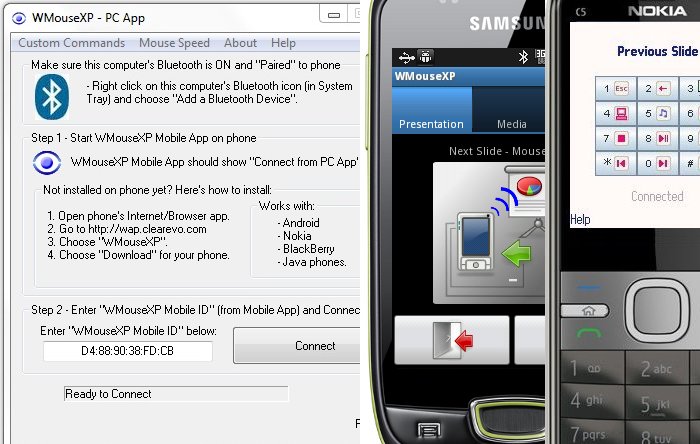
IT JUST WORKS! Uniquely easy to setup. Easy to use!
Install Now!
Easy 3-Step-Setup:
1 - Install WMouseXP “Mobile App” on your phone:
Android phones - Samsung, HTC, LG, Motorola, Sony Ericsson: Click here to install on Android - or Open Android “Market” on phone and “Search” for “WMouseXP” then select “Install” from there. As for those who prefer manual installation via adb or send via bluetooth or via sd-card, you can download this apk file.
Nokia or other Java-Enabled phones - BlackBerry, Samsung, Motorola, SonyEricsson: Open your phone’s web-browser (“Internet” app) to “http://wap.clearevo.com“, choose WMouseXP, Download and install it on your phone from there, then start/open it. (it would be in “Applications” and/or “Downloads”, allow it to access Bluetooth until you see “Connect from PC-App”.) As for those who prefer manual installation via Nokia PC Suite or send via bluetooth, you can download this jar file.


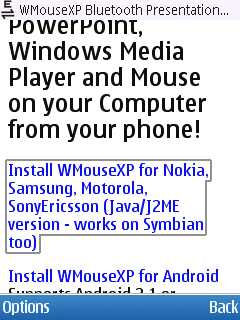


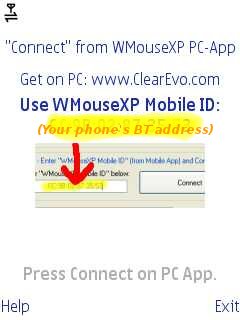
2 - Make sure your computer/notebook’s Bluetooth is ON and paired with your phone. (If your computer does not have Bluetooth then you can get a cheap USB Bluetooth dongle, preferably one which comes with a Broadcom driver.)
Here’s how to “pair” your phone’s Bluetooth with your computer’s or notebook’s Bluetooth:
- 2.1 Open phone’s Bluetooth Settings, set visibility to “Discoverable” so that it can be discovered from PC.
- Nokia: Go to Menu > Settings > Connectivity > Bluetooth > My phone’s visibility = “Show to all” or “Define period” as in screenshot below. (Setting to “Hidden” would cause the connect or search/pair to fail!)
- Android: On home screen, press the “settings” button (the “3 stripes” button on bottom of screen) and choose “Settings” > Wireless and Networks > Bluetooth > Check the “Visible” or “Discoverable” box.
- Nokia: Go to Menu > Settings > Connectivity > Bluetooth > My phone’s visibility = “Show to all” or “Define period” as in screenshot below. (Setting to “Hidden” would cause the connect or search/pair to fail!)
- 2.2 Start pairing from PC - On Computer: right-click on the Bluetooth icon in the bottom-right system-tray and choose “Add a new Bluetooth device” - or go to the Bluetooth settings in Control Panel and select “Add”.
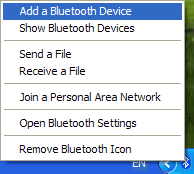
- Follow the steps as per your computer’s Bluetooth software, you can normally choose an easy numeric pass-code, like 0000, then your phone would notify and ask you to enter/confirm that code, then the pairing would be done.

3 - Click here to Download WMouseXP “PC App” - install on computer, start it.
- Get your phone’s “WMouseXP Mobile ID” shown in your mobile app (this is actually your phone’s Bluetooth address) - Enter it into the PC app, then press the “Connect” button. Done!
-
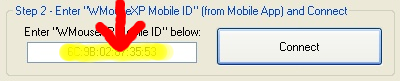
Connect failed?
This is normally because the phone wasn’t paired with your computer’s Bluetooth yet. Simply follow the steps above to pair with PC.
If things still don’t work, you can lastly try setting the Bluetooth visibility to “Show to all” as in below screenshot, then try press connect from WMouseXP on PC again.

Connected Successfully?
Now, Open a Powerpoint Presentation on your computer…
… and remote-control the slides from phone!
Instructions for Nokia Series 40, Symbian, Samsung Java or other Java phones:
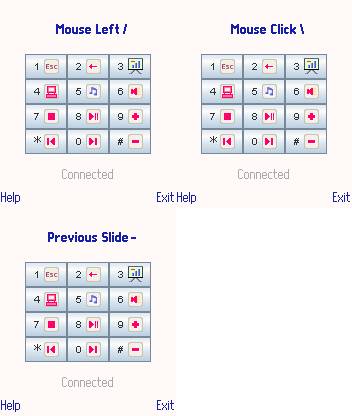
- Press 3 (if touch-sreen: touch the presentation icon at top-right) on the phone to start the presentation.
- Click/press the phone’s joystick (middle button) (or OK button on Samsung touch phones) for the next step/slide. Press 2 for the previous slide.
- Use the joystick (if touch-screen: use the on-screen joystick arrows) to move mouse cursor and point where you want.
- Press 1 (if touch-screen: top left “Esc” icon) to exit the presentation.
- Press 5 (if touh-screen: tap on the media icon) to start your media player, open a playlist, try the next/previos track, play, pause, stop, mute and volume control buttons.
Instructions for Android - Samsung, HTC, LG, Motorola or Others:
- Tap the button to start the presentation.
- Change presentations slides by pressing your phone’s Volume control buttons on the side of your phone: + for next step/slide, - for previou slide.
Tap the “door” icon (bottom left) button to exit the presentation.
- You can use the on-screen joystick buttons (in “Mouse” tab) to move the mouse cursor and click on things.
- In the “Media” tab, tap the media player icon to start your media player, open a playlist, try the next/previos track, play, pause, stop, mute and volume control buttons.
Instructions for BlackBerry:
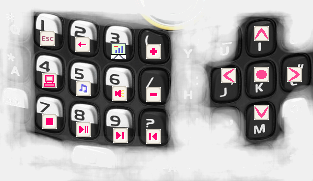
- Press 3 on your BB to start the presentation.
- Use the Volume control buttons on the side of phone: + for next step/slide, - for previou slide.
- Use your BlackBerry keyboard keys: I,J,L,M as the joystick to move mouse cursor and point where you want (instead of the trackball or trackpad).
- Press 1 to exit the presentation. Please see the BB command-map shown for more info:
- Press 5 to start your media player, open a playlist, try the next/previos track, play, pause, stop, mute and volume control buttons.
Requirements
The Best way to know if it works on your phone and PC or not is to download and install a FREE TRIAL on your phone and PC. WMouseXP consists of the Mobile Side program and the PC Side program - they need to connect via Bluetooth and work together, here are their requirements:
WMouseXP Mobile Side
Android: Android 2.1 or later.
BlackBerry: Generally most BBs (j2me + jsr-82) should work - Tested on Blackberry Curve 8520, Torch 9800.
Java-enabled (j2me) phones: needs the Java Bluetooth API (JSR-82) - generally all new Series 40, S60, Symbian, also tested and working on Samsung Jet, Motorola Razr, SonyEricsson K700, etc.
Java-enabled phones that match:
- Nokia 2710, 3250, 3710 Fold, 3711 Fold, 3720 classic, 500 Fate, 5228, 5230, 5232, 5233, 5235 Comes With Music, 5250, 5320 XpressMusic, 5330 XpressMusic, 5500 Sport, 5530 XpressMusic, 5630 Xpress Music, 5700 XpressMusic, 5730 XpressMusic, 5800 XpressMusic, 600 Cindy, 6110 Navigator, 6120 classic, 6121 classic, 6122c, 6124 classic, 6210 Navigator, 6220 Classic, 6260 Slide, 6290, 6303 classic, 6350, 6630, 6650 Fold, 6680, 6681, 6700 Slide, 6720 Classic, 6730 Classic, 6750 Mural, 6788, 6790 Mako, 700 Zeta, 701 Helen, 7020, 702T, 7230, 7510 Supernova, C1-01, C1-02, C2-00, C2-01, C2-02 Touch and Type, C2-03 Touch and Type, C2-06, C3-00, C3-01 Touch & Type, C5-00, C5-01, C5-03, C6-00, C6-01, C7-00, C7-00.1 Astound, C7-00s Oro, E5-00, E50, E51, E52, E55, E6-00, E60, E61, E62, E63, E65, E66, E7-00, E70, E71, E72, E73 Mode, E75, E90, N70, N71, N72, N73, N75, N76, N77, N78, N79, N8-00, N80, N81, N82, N85, N86, N90, N91, N92, N93, N95, N96, N97, N97 Mini, T7-00, X2-00, X2-01, X3-00, X3-02, X5-01, X6-00, X7-00
- Samsung GT i7110, GT i8510 Innov8, GT i8910 Omnia, SGH G810, SGH L870, SGH i400, SGH i450, SGH i455, SGH i550, SGH i560
- LG KS10 Joy, KT610
- Sony-Ericsson U1 Satio, U5 Vivaz, U8 Kanna
WMouseXP PC Side
Windows 7 or Windows XP (Service Pack 2 or later) + (USB or Internal or Integrated) Bluetooth on Broadcom/WIDCOMM (1.4.2.10 SP5 or newer) or Microsoft or BlueSoleil (1.6 or newer) or Toshiba Bluetooth Driver/Stack. Tested on various Bluetooth hardware, both USB and internal Bluetooth. See other things you can do with Bluetooth…
Features
Mouse Commands:
Use your phone’s joystick to move the mouse left right up down. Click the joystick in (or the middle/fire button on some phones) to do a left click, press and hold it for a right click on your PC.
Numpad Commands:

- 1: Exit the presentation (Esc, use while in Powerpoint*).
- 2: Previous slide (Page Up, use while in Powerpoint*).
- 3: Start presentation (F5, use while in Powerpoint*).
- 4: Launch “My Computer”.
- 5: Launch Media Player.
- 6: Mute/Unmute.
- 7: Stop.
- 8: Play/Pause.
- 9: Increase Volume.
- *: Previous Track.
- 0: Next Track.
- #: Decrease Volume.
Notes:
- WMouseXP generates keyboard events as described. Therefore, it would work as described only when a presentation is already opened in Microsoft Powerpoint. Also compatible with OpenOffice.org (a free open-source alternative to Microsoft Office) presentations:
- “My Computer” would not be launched if another “My Computer” window is alraedy open.
- Right click doesn’t work on some phones, mouse speed acceleration doesn’t work on some PCs. Try the FREE-TRIAL to test them on your phone/PC.
Other Notes: Some media player commands may not work as intended if you have some versions of Nero or WinAmp software installed. You can check this if you have a multimedia keyboard: try pressing the “Media Player”,”Play”,”Stop”,”Next Track”,”Previous Track”, “Increase Volume”, “Decrease Volume” keys - you can normally expect the same results from WMouseXP. Just try the FREE TRIAL - The Best way to know if it works on your phone and PC or not.
Known Issues: -The PC-Side WMouseXP used to work fine but suddenly it always show “Connection Declined or Timed-Out”. Solution: This rare error can be solved by Restarting your PC and try again.
Usage Scenarios
Bluetooth Presentation Remote Control
Walk around explaining your presentation on stage (or in meeting/class rooms), click the joystick of your phone to move on to the next step/slide of your presentation. Press “2” on the numpad to go to the previous one. With WMouseXP, you have wireless control of your powerpoint presentation in your hand!
Wireless Mobile Bluetooth Mouse
With WMouseXP, your mobile phone can be used as a wireless mouse: move the mouse, left click, right click - all using your phone’s joystick. WMouseXP generates smooth cursor movement on PC, the cursor move speed increases as you hold the joystick down. When you have control of your mouse cursor, you have wireless control of your computer. What’s better is that you don’t have to use a clean surface/table like that of a real mouse. This mouse is entirely hand-held. You can use WMouseXP on your sofa, your bed, from your kitchen, virtually anywhere in the Bluetooth range - this is normally up to ten meters away!
Bluetooth Media Player Remote Control
With WMouseXP, your phone becomes the remote control of your PC-based entertainment system. Sit-back on your comfortable sofa or lay down on your bed while having full control of your Media Player from your phone - change the track, increase the volume, open your favorite movie, double click your phone’s joystick to make it full-screen. Feel sleepy? Just move the cursor to your Window’s “Start” button and shut-down the computer. Yes, that sounds nice. Just use WMouseXP to make all this happen. Bluetooth signals can even go through walls, so you can even change the song in your playlist or increase the volume while you’re in the bathroom! (but don’t get your phone wet!)
Questions & Comments
Please email <support[AT]clearevo.com>
Alternative Free-Software/Open-Source Version
Please visit http://github.com/ykasidit/WMouseXP.
Special Thanks
- Thanks to Toshiba Corporation for their Toshiba Bluetooth Stack software programming interface and their agreement to let it be used.
- Thanks to IVT Corporation for their BlueSoleil Bluetooth Stack software programming interface and their agreement to let it be used.
- Thanks to Broadcom Corporation for their openness of their great WIDCOMM Bluetooth software programming interface.
- Thanks to Microsoft Corporation for their openness of their Microsoft Bluetooth Stack Bluetooth software programming interface.
- Thanks to Alexandre Calixto for his great suggestions and bug reports.
- Thanks to Nokia, Sun, Google, Eclipse, GIMP, Emacs, git, and others for providing all the tools to make and maintain this software.
- Thanks to the Tango project for providing great icons as public domain, also thanks to the derived Tango for devices icons.